Edpuzzle
Assign a video for homework, and you face a familiar problem. Did students watch it? Did they skip to the end? Did they understand any of it? Edpuzzle was built to answer those questions. It turns ordinary videos into lessons with built-in questions, and it shows teachers exactly who watched, how long they watched, and how they answered.
Since its launch in 2013, the platform has grown into a common tool in classrooms around the world. Its video library holds more than 30 million lessons, and schools in about 190 countries use it. This guide explains how it works, what it costs, how students join, and how to get the most out of it.
What It Is
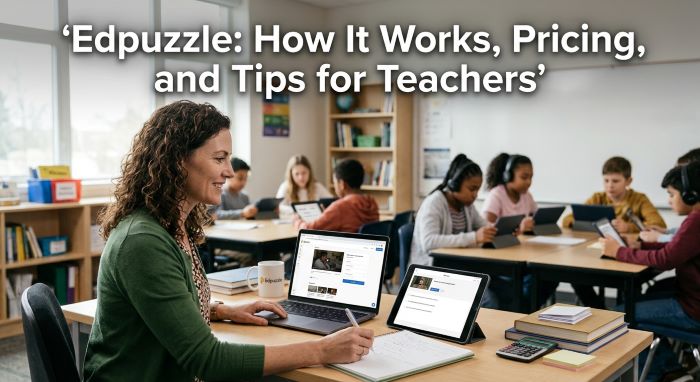
Edpuzzle is a web-based platform for creating interactive video lessons. Teachers pick a video, then add questions, notes, and voice comments at set points. When students watch, the video pauses at each question until they answer. Teachers then see each student’s progress and responses in a gradebook.
It supports many teaching styles, including:
- Flipped classrooms, where students watch lessons at home and practice in class
- Self-paced learning, where students move through content at their own speed
- Blended learning and station rotation
- Absent student support, so kids who miss class can catch up
Quick Facts
| Launched | 2013 |
| Origin | Barcelona, Spain |
| Company | EDpuzzle Inc. |
| Users | Schools in about 190 countries |
| Video lessons | More than 30 million |
| Free plan | Yes, with a limit on active video lessons |
| Paid plans | Pro Teacher, plus school and district plans |
| Privacy | States compliance with FERPA, COPPA, and GDPR |
A Short History
The company started in Barcelona in 2013. One of its founders, Quim Sabrià, was a teacher who wanted a better way to know whether students were learning from videos. The idea grew from a classroom need into a startup, and the company later expanded into the U.S. market, where most of its users are today.
How It Works for Teachers
Creating a lesson takes only a few steps.
Step 1: Find or Upload a Video
Teachers can search popular sources such as YouTube, Khan Academy, TED, National Geographic, and others from inside the tool. They can also upload their own recordings or use the built-in screen recorder to make a lesson from scratch.
Step 2: Trim the Video
Long videos lose students. The crop tool lets teachers cut out the parts they do not need, so students see only the most useful minutes.
Step 3: Add Questions and Notes
This is the core feature. Teachers place items along the timeline:
- Multiple-choice questions that grade themselves
- Open-ended questions where students type answers
- Notes with text, images, or links
- Voiceover to narrate over the whole video
- Audio notes to add short spoken comments at key moments
Step 4: Set Options
Teachers can turn on settings like prevent skipping, which stops students from fast-forwarding past content. They can also set due dates and choose whether students may retry questions.
Step 5: Assign and Track
Teachers assign the lesson to a class. The gradebook then shows who watched, how much of the video they saw, how many times they rewatched parts, and how they answered each question.
AI Features
The platform has added AI tools under the name Teacher Assist:
- AI question generator. It reads a video’s transcript and creates multiple-choice questions, open-ended questions, or both. Teachers can edit or delete any question. It works on videos that do not already have questions.
- Autograde for open-ended questions. Teachers write a model answer, and the tool grades student responses against it. Teachers can override any grade.
These features can save hours of prep and grading time, though teachers should always review AI questions for accuracy and fit. AI can miss context, misread a transcript, or ask about a detail that does not matter for the lesson goal.
Edpuzzle Pricing: Free vs. Paid
Free Basic Plan
The free plan gives teachers access to the core tools. Its main limit is the number of video lessons a teacher can keep active at one time, which has been set at 20. To add more, teachers delete or archive older ones.
Pro Teacher Plan
The Pro plan removes the cap on video lessons and adds extra features. Listed prices have ranged from about $11.50 to $13.50 per month, depending on billing and timing. Check the official site for current pricing.
School and District Plans
Schools and districts can buy plans that cover all teachers, with shared content libraries, admin tools, deeper analytics, and support. Pricing is by quote.
| Plan | Cost | Video Lesson Limit | Best For |
|---|---|---|---|
| Basic | Free | 20 active lessons | Trying it out, light use |
| Pro Teacher | About $11.50 to $13.50 per month | Unlimited | Individual teachers who use it often |
| School / District | By quote | Unlimited | Whole schools and districts |
How Students Join and Log In
Students can join a class in a few simple ways:
- Class code. The teacher shares a code. Students go to the website, sign up or log in, and enter the code.
- Google or Microsoft sign-in. Many schools use these accounts so students do not need new passwords.
- LMS links. If the teacher assigns lessons through a learning management system, students click the assignment and open it there.
- Clever. Districts using Clever can give students one-click access.
Students can use a computer, tablet, or phone, and there are mobile apps for iOS and Android.
Integrations
The tool connects with the platforms many schools already use:
- Google Classroom
- Canvas
- Schoology
- Moodle
- Microsoft Teams
- Blackboard
- Clever
- Blackbaud
With these integrations, teachers can sync rosters and send grades back to their gradebook automatically.
Student Projects
Teachers can also flip the roles. With student projects, learners create their own interactive videos. They might add questions to a video for classmates or record a voiceover explaining a concept. This helps students think more deeply, since teaching others is one of the best ways to learn.
Classroom Tips
- Keep videos short. Aim for five to ten minutes. Trim longer videos.
- Ask questions early. Place the first question within the first minute to keep attention.
- Mix question types. Use multiple choice for quick checks and open-ended questions for deeper thinking.
- Use your own voice. Audio notes and voiceovers build connection, even with videos made by others.
- Turn on prevent skipping. It keeps students from rushing to the end.
- Review the data. Look for questions most students missed and reteach those ideas.
- Reuse and share. Copy lessons from colleagues or the public library to save time.
- Check AI questions. Always review AI-generated questions before assigning.
Pros and Cons
Pros
- Works with almost any video
- Simple to learn and set up
- Clear data on who watched and how they did
- Prevent skipping keeps students accountable
- AI tools speed up question writing and grading
- Strong LMS integrations
Cons
- The free plan limits active video lessons
- Students can still play videos in the background without paying close attention
- Open-ended questions take time to grade without the AI tool
- Some school networks block video sites, which can limit content
How It Compares
| Tool | Main Strength | Cost Model |
|---|---|---|
| Edpuzzle | Interactive videos with tracking | Free plan; paid Pro and school plans |
| PlayPosit | Interactive videos for schools and higher education | Paid plans |
| Nearpod | Interactive slide lessons with video | Free plan; paid upgrades |
| Kahoot | Game-based quizzes | Free plan; paid upgrades |
Many teachers use more than one tool. Edpuzzle stands out when the lesson centers on video, while game-based tools work well for quick reviews and slide-based tools suit full lessons with many activity types.
Common Questions
Is it free? Yes, the Basic plan is free, with a limit of 20 active video lessons. Paid plans remove the limit.
Can teachers tell if students skip the video? Yes. The gradebook shows how much each student watched, and teachers can turn on prevent skipping.
Does it work with Google Classroom? Yes. It integrates with Google Classroom, Canvas, Schoology, and other platforms.
Can I use YouTube videos? Yes. Teachers can search and use YouTube videos from inside the tool.
Does it have AI features? Yes. Teacher Assist can generate questions from a video’s transcript and help grade open-ended answers.
How do students join? With a class code, Google or Microsoft sign-in, Clever, or a link from the school’s learning management system.
Making Video Time Count
Edpuzzle solves a simple but real problem: making sure students learn from the videos they watch. With built-in questions, voice notes, skip prevention, and clear data, it turns passive viewing into active learning. The free plan is enough to get started, while Pro and school plans suit heavy users. Keep videos short, ask good questions, and use the data to guide your teaching, and Edpuzzle can become one of the most useful tools in your classroom.
Key Takeaways
- Edpuzzle turns any video into an interactive lesson with questions, notes, and voiceovers.
- It launched in 2013 in Barcelona and is used by schools in about 190 countries.
- Teachers can trim videos, add multiple-choice and open-ended questions, and turn on prevent skipping.
- Teacher Assist AI generates questions from transcripts and helps grade open-ended answers.
- The free Basic plan allows 20 active video lessons; Pro removes the limit for about $11.50 to $13.50 per month.
- Students join with a class code, Google or Microsoft sign-in, Clever, or an LMS link.
- It integrates with Google Classroom, Canvas, Schoology, Moodle, Microsoft Teams, and more.
- Short videos, early questions, and regular data review lead to the best results.