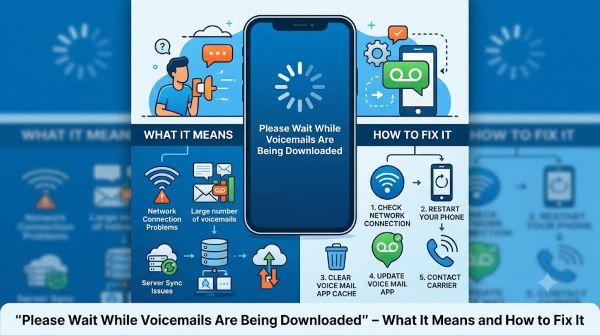
You open your voicemail app and instead of your messages, you see: “Please wait while voicemails are being downloaded.” The screen sits there. Nothing loads. You wait. Nothing happens. This is one of those errors that is equal parts annoying and confusing because the message implies it’s doing something, but it never actually finishes.
The “please wait while voicemails are being downloaded” message appears most often on iPhones using Visual Voicemail, but it can also appear on Android devices depending on the carrier and voicemail app. The causes are usually straightforward and the fixes are quick once you know which one applies to your situation.
What Is Happening When You See This Message?
Visual Voicemail works by downloading voicemail audio files directly to your phone over your carrier’s data network, rather than requiring you to call a voicemail inbox. When the download gets stuck, the app shows the “please wait while voicemails are being downloaded” message and waits for a connection that isn’t coming through.
The issue is almost always a connection problem between your phone and the carrier’s voicemail server, not a problem with the voicemails themselves.
Fix 1: Toggle Airplane Mode
The fastest reset for any carrier data issue is cycling Airplane Mode. This forces your phone to drop and re-establish its connection to the carrier network.
On iPhone: swipe down from the top-right corner to open Control Center and tap the airplane icon. Wait 10 seconds, then tap it again to reconnect.
On Android: pull down the notification shade and tap Airplane Mode. Wait 10 seconds and tap it again.
After reconnecting, open the Phone app and check whether the voicemail tab loads. This resolves “please wait while voicemails are being downloaded” in many cases on its own.
Fix 2: Restart Your Phone
A full restart clears temporary system states and resets network connections more thoroughly than Airplane Mode alone. Hold the power button, restart the device, and wait until it has fully reconnected to the carrier network before opening the voicemail tab.
Fix 3: Check Your Cellular Data Connection
Visual Voicemail uses cellular data, not Wi-Fi. If cellular data is turned off or restricted for the Phone app, voicemails cannot download regardless of your Wi-Fi signal.
On iPhone: go to Settings, then Cellular (or Mobile Data), scroll down to find Phone in the app list, and make sure cellular data is enabled for it.
On Android: go to Settings, then Network and Internet, then Data Usage, and look for your Phone or Voicemail app to confirm it isn’t restricted.
Also check whether Low Data Mode is enabled. On iPhone, this is under Settings, Cellular, Cellular Data Options. Low Data Mode can suppress background downloads including voicemail syncing.
Fix 4: Reset Your Network Settings
If the connection to the carrier’s voicemail server has become misconfigured, resetting network settings forces the phone to re-establish carrier settings from scratch.
On iPhone: go to Settings, General, Transfer or Reset iPhone, Reset, then Reset Network Settings. This clears Wi-Fi passwords, VPN configurations, and cellular settings. You will need to reconnect to Wi-Fi networks afterward.
On Android: go to Settings, General Management (or System), Reset, then Reset Network Settings.
After the reset, reconnect to Wi-Fi and wait a few minutes for the carrier connection to stabilize before checking voicemail again.
Fix 5: Update Carrier Settings on iPhone
Carrier settings updates contain configuration data for voicemail, calling, and cellular services. An outdated carrier settings file can cause voicemail sync issues.
On iPhone: go to Settings, General, then About. If a carrier settings update is available, iOS will prompt you to install it automatically when you open this page. Tap Update if prompted.
Fix 6: Call Your Voicemail Directly
If the visual voicemail interface is stuck showing “please wait while voicemails are being downloaded” and you need to hear your messages now, bypass it entirely. Call your voicemail number directly. On most carriers, this is done by pressing and holding the 1 key on the dial pad.
This confirms whether the voicemails themselves are accessible and whether the problem is with Visual Voicemail specifically or the messages themselves.
Fix 7: Contact Your Carrier
If none of the above resolves the “please wait while voicemails are being downloaded” message, the issue may be on the carrier’s end. Voicemail servers do experience outages and maintenance windows. Contact your carrier’s support line or check their status page to confirm whether there is a known issue.
Carriers can also reset your Visual Voicemail subscription from their side, which clears stuck sync states that aren’t fixable from the device.
Fix 8: Delete and Re-Set Up Visual Voicemail
On iPhone, you can reset Visual Voicemail by calling your carrier’s voicemail setup number and going through the setup process again. This re-registers your device with the voicemail server. Your carrier’s customer support can provide the specific setup number for your account.
Why Does This Happen After a Software Update?
iOS and Android updates occasionally reset or overwrite carrier settings, which can knock Visual Voicemail out of sync. If the “please wait while voicemails are being downloaded” message appeared shortly after updating your phone’s operating system, the carrier settings update in Fix 5 is usually the right solution.
Updates can also change how the Phone app accesses cellular data permissions, so checking the cellular data settings for the Phone app (Fix 3) is worth doing immediately after any major software update if voicemail stops loading.
If you updated recently and the issue is brand new, cycling through Fix 2 (restart), Fix 5 (carrier settings update), and Fix 4 (network reset) in that order resolves the problem in most post-update cases.
Does Wi-Fi Calling Affect Voicemail Downloads?
Yes, in some cases. Wi-Fi Calling routes voice traffic over your internet connection instead of the cellular network. On some carrier and device combinations, having Wi-Fi Calling enabled while on a weak cellular signal creates a conflict that stalls voicemail downloads.
If you have Wi-Fi Calling enabled, try temporarily disabling it. On iPhone, go to Settings, Phone, Wi-Fi Calling, and toggle it off. Reopen voicemail and check whether it loads. If it does, your carrier may have a known compatibility issue between Wi-Fi Calling and Visual Voicemail on your specific plan.
- “Please wait while voicemails are being downloaded” means your phone cannot complete a data connection to the carrier’s voicemail server.
- The issue is almost always a connectivity problem, not a problem with the voicemails themselves.
- Toggling Airplane Mode on and off is the fastest first step. It forces a fresh connection to the carrier network and clears many instances of the error.
- Visual Voicemail uses cellular data, not Wi-Fi. Confirm that cellular data is enabled for the Phone app and that Low Data Mode isn’t blocking background downloads.
- Resetting network settings clears misconfigured carrier connections and resolves persistent cases of the “please wait while voicemails are being downloaded” message.
- Update carrier settings on iPhone by going to Settings, General, then About. Outdated carrier settings are a common and overlooked cause.
- You can access voicemails immediately by calling your voicemail number directly while the Visual Voicemail interface is stuck.
- If the problem persists after all device-side fixes, contact your carrier. They can check server-side issues and reset your Visual Voicemail subscription remotely.