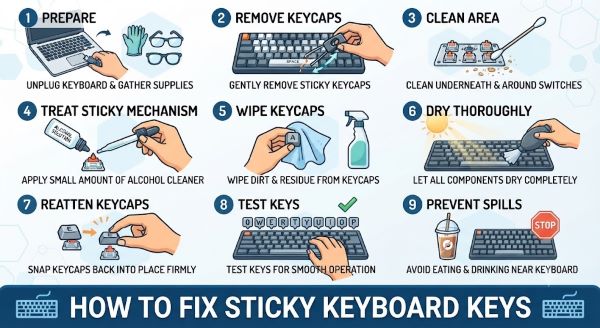
A sticky key disrupts typing in a way that is disproportionately frustrating for how small the actual problem usually is. Knowing how to fix sticky keyboard keys depends on the type of keyboard you have and the cause of the stickiness, whether that is dust buildup, a spilled liquid that left residue behind, or simple wear on the key mechanism. This guide covers safe cleaning methods for both laptop and mechanical keyboards, along with what to do when basic cleaning isn’t enough.
Common Causes of Sticky Keys
Before cleaning, it helps to understand what’s actually causing the stickiness. Dust and debris accumulate under and around keys over time, particularly in keyboards used near food or in dusty environments, and this buildup interferes with the smooth mechanical action of the key. Spilled liquids, even small amounts like coffee, soda, or juice, leave behind a sticky residue as they dry, which is one of the most common causes of a single key sticking while others remain unaffected. Worn or aging key mechanisms can also develop stickiness over years of use, particularly on laptops where the keyboard mechanism is more delicate than standalone mechanical keyboards.
How to Fix Sticky Keyboard Keys on a Laptop
Laptop keyboards require a more careful approach since the keys and underlying mechanism are more fragile and harder to access than on a standalone keyboard.
Step 1: Power down and unplug. Turn off the laptop completely and disconnect any power source before attempting any cleaning, both for safety and to prevent unintended keystrokes from registering during the process.
Step 2: Use compressed air first. Holding the laptop at an angle, use a can of compressed air to blow around and under the affected key. This often dislodges loose dust or debris without requiring any disassembly, and should always be the first step before more invasive methods.
Step 3: Gently remove the keycap if compressed air doesn’t resolve it. Most laptop keycaps can be carefully pried off using a flat tool like a thin plastic card or a specialized keycap puller, inserted gently under the edge of the key and lifted with light, even pressure. Take a photo before removing the key so you have a reference for how it reattaches, since laptop key mechanisms (particularly scissor-switch designs common on most modern laptops) can be tricky to reassemble correctly.
Step 4: Clean the area beneath the key. Use a cotton swab lightly dampened with isopropyl alcohol (90% or higher concentration is ideal, since it evaporates quickly and leaves minimal residue) to clean the exposed mechanism and the underside of the keycap. Avoid using excessive liquid, since laptop keyboards have very little tolerance for moisture reaching internal components.
Step 5: Let it dry completely, then reattach the key. Allow several minutes for the alcohol to fully evaporate before snapping the keycap back into place, aligning it carefully with the underlying mechanism based on your reference photo.
How to Fix Sticky Keyboard Keys on a Mechanical Keyboard
Standalone mechanical keyboards are generally easier to work on since the keycaps are designed to be removed and the switches underneath are more robust than laptop scissor-switch mechanisms.
Step 1: Use a keycap puller. A wire or plastic keycap puller (inexpensive and widely available, often included with mechanical keyboards) makes removing keycaps significantly easier and safer than using improvised tools, reducing the risk of damaging the keycap or switch stem.
Step 2: Remove the affected keycap. Hook the puller under the keycap on opposite sides and pull straight up with even pressure, avoiding any sideways torque that could damage the switch stem underneath.
Step 3: Inspect the switch. Mechanical keyboard switches are more substantial than laptop mechanisms and can often be cleaned without full removal from the keyboard. Look for visible debris, dried liquid residue, or discoloration around the switch housing.
Step 4: Clean with isopropyl alcohol. Dampen a cotton swab or a small brush with isopropyl alcohol and clean around the exposed switch housing and the underside of the keycap. For switches affected by a sticky spill, a more thorough approach may involve removing the switch from the keyboard entirely (only possible on hot-swappable keyboards without desoldering) and cleaning it more comprehensively.
Step 5: Address lubrication if the switch feels scratchy after cleaning. Mechanical keyboard enthusiasts often apply specialized switch lubricant (such as Krytox or similar products designed specifically for keyboard switches) after cleaning to restore smooth action, particularly on switches that have been thoroughly cleaned and may have lost their factory lubrication in the process.
Step 6: Reattach the keycap. Press the cleaned and dried keycap firmly back onto the switch stem until it clicks into place.
When a Spill Is the Cause
If a key became sticky immediately after a liquid spill, particularly something sugary like soda or juice, more thorough cleaning is usually necessary than dust alone requires. This is one of the more common scenarios people search how to fix sticky keyboard keys for, since sugar residue in particular can crystallize as it dries and continue causing stickiness even after a single cleaning pass.
For a sugary spill, after the initial cleaning steps above, consider a second cleaning pass focused specifically on flushing out the switch mechanism (on mechanical keyboards) or the area immediately surrounding the key (on laptops) more thoroughly, since residual sugar can remain in small crevices that a single alcohol wipe might miss. Allowing significantly more drying time, sometimes 24 hours for a laptop that experienced a more substantial spill, prevents reassembling a key while moisture remains trapped underneath.
What to Avoid When Cleaning Sticky Keys
Knowing how to fix sticky keyboard keys also means knowing what mistakes make the problem worse rather than better.
Avoid using water or non-isopropyl cleaning liquids. Water can cause corrosion on metal components and takes much longer to evaporate than isopropyl alcohol, increasing the risk of moisture-related damage, particularly on laptops.
Avoid excessive force when removing keycaps. Both laptop and mechanical keyboard mechanisms can be damaged by yanking keycaps off at an angle or with excessive force rather than using the correct tool and a straight, even pull.
Avoid skipping the drying step. Reattaching a key before the cleaning liquid has fully evaporated can trap moisture underneath, potentially causing the stickiness to return or, worse, leading to corrosion over time.
When to Consider Professional Repair or Replacement
If a key remains sticky after thorough cleaning, or if multiple keys are affected simultaneously (which often indicates a more significant spill that reached deeper into the keyboard’s internal structure), professional repair or replacement may be more practical than continued DIY troubleshooting. For laptops, this is particularly relevant since the keyboard is often integrated into a larger assembly that can be costly and complex to fully disassemble safely. For external mechanical keyboards, replacing an individual problematic switch is often more cost-effective than replacing the entire keyboard, particularly on hot-swappable models designed for this kind of repair.
Key Takeaways
- Knowing how to fix sticky keyboard keys starts with identifying the cause, whether that’s dust buildup, a liquid spill, or general wear on the key mechanism.
- For laptops, always start with compressed air before attempting to remove a keycap, since laptop key mechanisms are more delicate and harder to reassemble correctly than standalone keyboards.
- Isopropyl alcohol at 90% concentration or higher is the safest cleaning liquid for keyboard mechanisms, since it evaporates quickly and minimizes the risk of moisture damage.
- Mechanical keyboards are generally easier to work on, since keycaps are designed for removal and switches are more robust than laptop scissor-switch mechanisms.
- A keycap puller is worth using over improvised tools, since it reduces the risk of damaging the keycap or the underlying switch stem during removal.
- Sugary spills require more thorough cleaning than dust alone, since sugar residue can crystallize and continue causing stickiness even after an initial cleaning pass.
- Always allow cleaning liquid to fully evaporate before reattaching a key. Reassembling too soon can trap moisture and either cause stickiness to return or lead to corrosion over time.
- If multiple keys remain affected after thorough cleaning, professional repair or targeted switch replacement is often more practical than continued troubleshooting, particularly for integrated laptop keyboards.