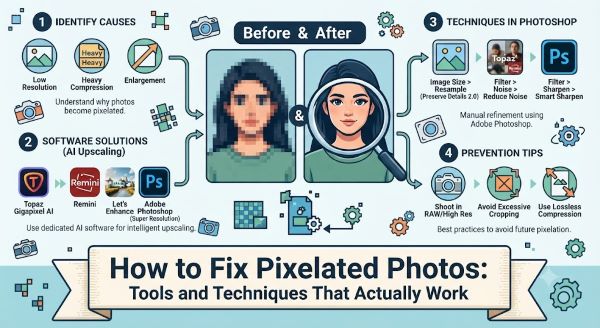
A pixelated photo is one of the more frustrating discoveries, especially when it happens to an important image you want to print, share, or use professionally. Knowing how to fix pixelated photos depends on understanding why pixelation happens in the first place, since the right fix varies depending on whether the image was compressed too aggressively, scaled up beyond its native resolution, or captured at low quality to begin with. This guide covers the tools and techniques that produce genuinely better results, not just superficial smoothing.
Why Photos Become Pixelated
Pixelation occurs when an image is displayed or printed at a size larger than its actual resolution supports, causing individual pixels to become visible as distinct blocks rather than blending smoothly. This commonly happens when a small image is enlarged, when a photo is heavily compressed (common with images sent through messaging apps or saved at low quality settings), or when an image was captured at a low resolution to begin with, such as an old camera phone photo or a screenshot.
Understanding the specific cause matters because it determines which fix will actually work. An image that was captured at low resolution has fundamentally less information to work with than one that was compressed after being captured at high resolution, and the available fixes differ accordingly.
Method 1: AI Upscaling Tools
AI-based upscaling has become the most effective method for how to fix pixelated photos in recent years, since these tools use machine learning models trained specifically to predict and reconstruct detail that traditional resizing methods cannot recover.
Topaz Gigapixel AI is one of the most widely used paid tools specifically built for this purpose. It analyzes the existing pixel data and intelligently generates new detail when enlarging an image, producing noticeably sharper results than simple resizing, particularly effective for photos that need to be enlarged for printing.
Let’s Enhance and Remini are accessible web and mobile-based AI upscaling tools that work well for casual users who do not need the depth of control offered by desktop software like Gigapixel AI. These tools are particularly popular for restoring old or low-resolution personal photos.
Adobe Photoshop’s Super Resolution feature, available in recent versions, uses AI to upscale images while preserving edge detail and reducing the blocky appearance associated with traditional pixelation. This is a strong option for anyone already working within the Adobe ecosystem.
Free AI upscaling tools, including waifu2x (originally built for anime-style images but effective on photos as well) and various free web-based services, provide a no-cost starting point, though results are generally less refined than paid alternatives for complex or detailed photographs.
Method 2: Adjusting Resolution and Resampling in Photo Editors
For less severe pixelation, one of the simplest ways to address how to fix pixelated photos is through traditional resizing tools in software like Photoshop, GIMP, or even built-in operating system photo apps, which can produce acceptable results without dedicated AI software.
When resizing an image upward, selecting “Bicubic Smoother” (in Photoshop) or an equivalent high-quality resampling method rather than the default or “nearest neighbor” setting significantly reduces the blocky appearance compared to a basic resize. This will not add detail that does not exist in the original image, but it smooths the transition between pixels in a way that looks less jarring than an unprocessed enlargement.
Method 3: Sharpening and Noise Reduction as a Secondary Step
Once an image has been upscaled, whether through AI tools or standard resampling, applying targeted sharpening can help define edges that became soft during the enlargement process. Unsharp Mask in Photoshop or similar sharpening tools in GIMP and Lightroom increase the contrast along edges, making the image appear crisper.
This step should always come after resizing, not before, since sharpening an already-pixelated image before enlargement tends to emphasize the pixelation rather than reduce it. Noise reduction tools can also help in cases where pixelation is accompanied by visible digital noise or graininess, smoothing out the overall texture of the image without sacrificing genuine detail.
Method 4: Working From the Original Source File
If the pixelated image is a compressed or resized copy of a photo you have access to in its original form, the most reliable fix is simply going back to the original source file rather than trying to repair the degraded copy. A photo that was compressed for sharing through text message or social media, for example, often has a much higher quality original still saved on the camera, phone, or cloud storage it came from.
Checking cloud backups, the original camera’s memory card, or any photo management software’s library before attempting to repair a compressed copy can save significant time and produce dramatically better results than any repair technique applied to the degraded version.
What These Tools Cannot Fix
Understanding the limitations of how to fix pixelated photos prevents unrealistic expectations. AI upscaling tools are very good at generating plausible detail based on patterns learned from training data, but they are reconstructing an approximation, not recovering information that was genuinely lost. For extremely low-resolution source images (a photo just a few dozen pixels wide, for example), even the best AI tools produce results that look smoother but are not equivalent to a genuinely high-resolution photo.
Photos with extreme compression artifacts, where the original detail has been heavily distorted rather than simply reduced in resolution, are also more difficult to fully correct, since the tools have to work around distorted information rather than simply adding detail to clean but low-resolution data.
Preventing Pixelation Going Forward
A few habits reduce how often you encounter pixelated images in the first place, which is ultimately the best approach to how to fix pixelated photos: avoiding the problem entirely. Always save and store original, full-resolution photo files rather than only keeping compressed copies shared through messaging apps. When sending photos that need to retain quality, use email or cloud-sharing links rather than standard text messaging, which compresses images significantly by default on most platforms. When capturing photos intended for printing or professional use, shoot at the highest resolution setting your camera or phone supports, since starting with more resolution gives you more flexibility later, including room to crop without introducing pixelation.
Key Takeaways
- Knowing how to fix pixelated photos starts with identifying the cause: enlargement beyond native resolution, heavy compression, or a genuinely low-resolution original capture each require slightly different approaches.
- AI upscaling tools like Topaz Gigapixel AI, Let’s Enhance, and Adobe’s Super Resolution feature produce significantly better results than traditional resizing for photos that need to be enlarged.
- Traditional resampling methods like Bicubic Smoother in Photoshop offer a free, built-in option that smooths pixelation without adding new detail, useful for less severe cases.
- Sharpening should always be applied after resizing or upscaling, not before, since sharpening a pixelated image first tends to emphasize rather than reduce the blocky appearance.
- Checking for the original, uncompressed source file before attempting any repair technique is often the fastest and most effective fix, since a higher-quality original frequently still exists in cloud storage or on the original device.
- AI tools generate plausible reconstructed detail rather than recovering genuinely lost information, so results on extremely low-resolution sources will look smoother but are not equivalent to a true high-resolution photo.
- Preventing pixelation going forward means storing full-resolution originals, avoiding standard text messaging for photo sharing, and capturing images at the highest resolution setting available when quality matters.
- Free tools like waifu2x provide a reasonable no-cost starting point, but paid AI upscaling software generally produces noticeably better results for detailed or complex photographs.