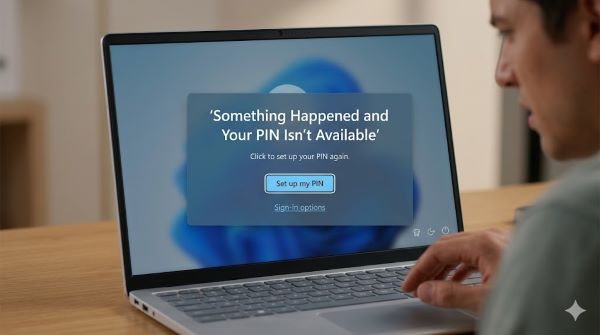
When you try to log into Windows and see the message “something happened and your pin isn’t available,” your system can’t access your PIN authentication. This error prevents you from using Windows Hello PIN to sign in, forcing you to find alternative login methods. Understanding the causes and solutions helps you regain access to your computer quickly.
The error appears on your login screen when Windows 11 or Windows 10 detects a problem with your PIN authentication system. Your PIN file might be corrupted, your account settings might have changed, or the authentication service might be temporarily unavailable. Whatever the cause, something happened and your pin isn’t available error has several reliable fixes.
Understanding Windows Hello PIN Technology
Windows Hello PIN is a biometric and PIN-based authentication system that replaces traditional passwords. It’s more secure than a standard password because it’s tied to your device’s Trusted Platform Module (TPM) hardware. This makes your PIN harder to steal remotely.
The PIN is different from your Microsoft account password. Your PIN only works on the specific computer where you created it. Even if someone steals your PIN, they can’t use it on other devices. This security advantage makes Windows Hello PIN popular, but it also means problems with your device can break PIN authentication.
The something happened to your pin situation typically stems from system-level issues rather than user error. Your PIN credentials are stored securely in your device’s encrypted storage. If that storage becomes inaccessible, the PIN stops working.
Error Context: Windows 11 PIN Not Available
The something happened and your pin isn’t available windows 11 error specifically affects Windows 11 systems, though earlier versions experience similar issues. Windows 11 relies heavily on Windows Hello authentication, making PIN problems more noticeable.
When you update Windows 11, sometimes the PIN authentication system needs to reinitialize. During this process, you might encounter the error temporarily. In most cases, waiting for the system to finish updating resolves it.
The windows 11 pin not working situation also happens when Windows 11 automatic updates interrupt the authentication system’s startup process. Incomplete or interrupted updates corrupt the PIN storage files.
Common Cause: Corrupted PIN Files
Your PIN credentials store in encrypted files on your system. These files can become corrupted for various reasons. Hard drive errors, interrupted writes, or system crashes damage the PIN storage file.
When Windows tries to read the corrupted PIN file, it can’t access your credentials. The system displays the “something happened and your pin isn’t available” message because authentication fails.
Corrupted files often repair themselves through Windows system file checks. Other times, you need to remove and recreate your PIN. Both approaches resolve the underlying file corruption issue.
Solution 1: Restart Your Computer
Sometimes the simplest solution works best. Restarting your computer refreshes the authentication system and reloads PIN credentials. Restart Windows 11 or your earlier Windows version and try using your PIN again.
Many temporary errors that trigger the pin isn’t available windows 11 message resolve after a restart. This works especially well if the error appeared right after updating Windows or installing new drivers.
If restarting doesn’t fix it, move to the following solutions.
Solution 2: Use Your Password to Log In
When the windows pin not available error prevents PIN login, use your password as an alternative. Click “Sign-in options” on the login screen. Select the password option and enter your Microsoft account password.
This gets you into Windows without using your PIN. Once logged in, you can work on fixing the PIN authentication system.
Your password is stored separately from your PIN. Even when PIN authentication fails, password authentication typically continues working. This gives you access while you fix the underlying issue.
Solution 3: Reset Your PIN
The most effective fix for the something happened and your pin isn’t available error is resetting your PIN entirely. This removes the corrupted PIN storage and creates fresh credentials.
From the login screen, click “I forgot my PIN.” Windows walks you through a verification process. You verify your identity using your password or recovery key, then set a new PIN.
This process eliminates the corrupted PIN file and creates new, clean credentials. Most users find that resetting their PIN immediately resolves the error.
Solution 4: Update or Repair Windows 11
Windows 11 updates sometimes fix PIN authentication issues. If your system is behind on updates, updating might resolve the problem.
Open Settings, go to Update & Security, and check for updates. Let Windows download and install any available updates. Restart your computer when prompted.
If updates don’t help, Windows includes a repair feature. Use the Windows Recovery Environment to run System Restore or repair options. These tools fix corrupted system files that might be causing the PIN error.
Solution 5: Disable and Recreate Windows Hello PIN
If resetting your PIN from the login screen doesn’t work, you can remove Windows Hello entirely and recreate it. This involves deeper system access.
Log in using your password. Open Settings and navigate to Accounts > Sign-in options > Windows Hello PIN. Look for an option to remove or manage your PIN.
Click the remove or delete button. This completely removes your Windows Hello PIN authentication. Restart your computer.
After removing Windows Hello PIN, log in again with your password. Return to the same Settings section and create a new PIN from scratch. This fresh installation often works where resetting didn’t.
Solution 6: Check Your Microsoft Account Status
The windows hello pin error sometimes connects to Microsoft account issues. Your PIN credentials tie to your account, and problems with your account affect PIN authentication.
Visit the Microsoft account security page (account.microsoft.com/security) and check your account status. Review recent activity and confirm your account hasn’t been compromised.
If you see suspicious activity, change your Microsoft account password. This security measure also might fix PIN authentication problems.
Ensure two-factor authentication is enabled on your account. Some PIN issues happen when your account security settings change unexpectedly.
Solution 7: Check Your Disk Health
Disk errors sometimes trigger PIN authentication failures. Your PIN files might sit on a bad sector of your hard drive, making them inaccessible.
Use Windows’ built-in Check Disk utility to scan for hard drive problems. Press Windows+R, type “chkdsk /F”, and press Enter. Restart your computer and let the tool run before Windows loads.
The Check Disk utility finds and repairs file system errors. Repairing disk errors sometimes makes your PIN files readable again.
Solution 8: Use Windows Recovery Environment
If standard solutions fail, boot into the Windows Recovery Environment. Restart your computer and hold Shift while clicking restart. Choose Troubleshoot from the menu.
From the Advanced Options, select Command Prompt or PowerShell. Run System Restore from here to revert Windows to a previous state when your PIN worked.
System Restore removes recent changes and corrupted files. If your PIN worked before, restoring to an earlier point often fixes it.
Understanding Windows PIN Not Working Issues
The windows pin not working situation involves several possible causes beyond just the “something happened” error. Your PIN might not work because you’re using it on the wrong computer, your PIN expired, or Windows Hello authentication services are disabled.
Confirm you’re using the PIN on the correct computer where you created it. Confirm Windows Hello is enabled in Settings. Check that your PIN hasn’t exceeded the maximum age limit, which sometimes triggers disablement.
PIN Issues After Windows Updates
Updates frequently cause the something happened and your pin isn’t available error. Windows 11 updates patch security systems, and sometimes the PIN authentication system needs to reinitialize during this process.
If the error appears immediately after updating, let Windows finish its post-update configuration. Sometimes this takes hours as various services initialize. Wait before trying solutions.
If the error persists after giving the system time, then proceed with resetting your PIN.
Preventing Future PIN Problems
Regular Windows updates help prevent PIN issues. Enable automatic updates so your system stays current and patches security problems quickly.
Back up your recovery codes when you set up Windows Hello. These codes help you regain access if PIN authentication fails. Store them somewhere safe, separate from your computer.
Create and maintain a strong password as a backup login method. If your PIN stops working, your password gets you into Windows so you can fix it.
Professional Support for Persistent PIN Errors
If nothing resolves the pin isn’t available error, contact Microsoft Support or visit a professional. They have diagnostic tools that identify the specific cause of PIN authentication failures.
They can examine your system’s security logs and PIN credential storage directly. Professional support might recover your PIN or restore your system to a working state.
Key Takeaways
- Something happened and your pin isn’t available means Windows can’t access your PIN credentials, usually due to corrupted PIN files or authentication system problems.
- Windows 11 PIN not available errors often resolve by restarting your computer, which refreshes the authentication system.
- Use your password to log in when the pin isn’t available windows 11 error blocks PIN login, then fix the PIN from your Settings.
- Reset your PIN by clicking “I forgot my PIN” on the login screen and going through the verification process to create new, clean PIN credentials.
- Windows Hello PIN authentication ties to your device’s hardware, making PIN problems specific to that computer but also making them secure.
- The something happened to your pin error frequently appears after Windows updates because the authentication system reinitializes during update completion.
- Corrupted PIN storage files cause most PIN authentication failures and typically require PIN removal and recreation rather than simple troubleshooting.
- Check your Microsoft PIN account security status and ensure your account hasn’t been compromised if PIN problems persist across multiple fixes.
- Running Check Disk utility fixes underlying hard drive problems that might make PIN credentials inaccessible.
- Windows pin not working issues sometimes stem from using the PIN on the wrong computer, since Windows Hello PINs are device-specific.
- Back up your recovery codes when setting up Windows Hello so you have an alternative way to access your account if PIN authentication fails permanently.