A window sliding completely off your screen can be frustrating. You can’t grab the title bar to drag it back, and clicking in that invisible area doesn’t help. Knowing how to move a window that is off screen solves this problem quickly without closing and reopening the application.
This happens to most computer users at some point. Maybe you connected an external monitor and then disconnected it, pushing windows onto that phantom display. Or you adjusted your monitor layout and an application window ended up in the negative coordinate space. Whatever the cause, moving a window off screen back to a visible area is straightforward once you know the techniques.
Using Keyboard Shortcuts to Move Windows
The fastest way to handle the move window that is off-screen windows 11 situation is using keyboard shortcuts. These shortcuts work without needing to see the window at all.
First, click the window’s taskbar button to give it focus. On Windows, this activates the window even if you can’t see it. Once the window has focus, press Alt+Space to open the window menu. This menu has a Move option that lets you reposition the window using arrow keys.
After selecting Move from the menu, your cursor changes to a crosshair. Use your arrow keys to move the window step by step. Press arrow keys to move the window up, down, left, or right across your screen. Each key press moves the window in that direction. Hold down an arrow key to move it faster.
Once the window starts appearing on your screen, press Enter to lock it in place. This method works even when the window is completely off-screen because you’re controlling it via keyboard, not mouse movement.
Windows 11 Snap Layout Features
Windows 11 introduced Snap Layout features that can help prevent windows from going off-screen initially. When you drag a window to the edge of your screen, Windows suggests snap positions that keep the window visible.
If a window is already off-screen, these snap features can help you reposition it. Try dragging the window from the taskbar to a snap position on your screen. Windows 11 displays snap layout suggestions, making it easier to place the window.
However, if the window remains stuck off-screen, the keyboard method described above is more effective than relying on snap features.
Moving a Window to Another Monitor
The move window to other monitor task often creates off-screen windows if you’re not careful. When using multiple monitors, windows can end up on a display you’re not currently using.
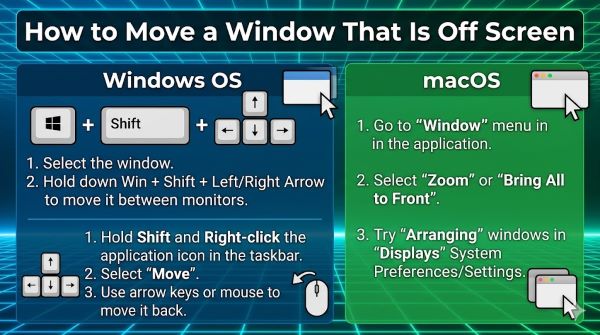
To move a window to another monitor, first give the window focus by clicking its taskbar button. Then hold Windows Key + Shift + Arrow keys. Pressing Windows+Shift+Right Arrow moves the window to the right. Windows+Shift+Left Arrow moves it left.
This shortcut works even if the window is partially off-screen. Use it to move windows between monitors without needing to drag them across your screen physically.
The Move Window with Keyboard Approach
Learning move window with keyboard techniques keeps you productive even when GUI interactions fail. Beyond the Alt+Space method, other keyboard shortcuts accomplish similar goals.
Some applications have their own window management shortcuts. Check your specific application’s documentation for any custom keyboard shortcuts that control window positioning.
Windows 11 also supports right-clicking on a window’s taskbar button to access a window menu. From there, you can select “Move” or other window management options. This provides an alternative to Alt+Space if that shortcut doesn’t work in your application.
How to Move Window to Other Monitor Using Snap
When you want the shortcut to move window to other screen, the Windows Key+Shift+Arrow method is fastest. This shortcut snap windows to your other monitor instantly.
Windows detects how many monitors you have connected and distributes the direction commands accordingly. If you have two monitors, the shortcut moves windows between them. With three or more monitors, it cycles through them depending on your arrangement.
Arrange your monitors carefully in Windows Display Settings so that the keyboard shortcuts move windows in the direction you expect.
Mac Window Management
On Mac, the how to move a window with keyboard process differs from Windows. Mac doesn’t have direct keyboard shortcuts to move off-screen windows, but you can achieve similar results.
The fastest method on Mac is pressing Command+M to minimize the off-screen window. Then open the window again from your Dock or application switcher. This sometimes places the window back on screen in its default position.
If minimizing doesn’t work, open the application preferences to reset window positions. Some Mac applications have settings that reset windows to default positions.
Using Third-Party Window Management Tools on Mac
Mac users might benefit from third-party window management utilities. Tools like Rectangle or Magnet add keyboard shortcuts for moving windows between monitors and snapping them to screen regions.
Download one of these free utilities if you frequently manage multiple windows. They provide the how to move window to other monitor functionality that macOS doesn’t include by default.
After installing, configure the keyboard shortcuts to your preference. Most tools let you move windows to specific monitor regions with simple key combinations.
Reopen Closed Tab Mac and Application Restoration
If you accidentally close a window that was off-screen, you can restore it. The reopen closed tab mac shortcut is Command+Shift+T, which restores recently closed tabs in browser windows.
For other applications, Command+Z sometimes restores closed windows. Check your specific application’s Edit menu for an Undo or Restore option.
Most Mac applications remember window positions when you close and reopen them. If a window was off-screen before closing, it might reappear off-screen when you reopen the application. Use the keyboard movement methods above to bring it back.
How to Get a Tab Back
Users searching for how to get a tab back might actually be looking for how to get a window back on screen. These are related but different concepts.
To restore a closed tab, use Command+Shift+T on Mac or Ctrl+Shift+T on Windows in your browser. Most browsers let you restore tabs you recently closed.
If you closed an entire application window containing multiple tabs, restoring depends on whether the application saves session information. Some browsers and applications remember your open windows and restore them when you launch the application again.
Window Opening Off Screen Problems
The window opening off screen problem sometimes happens automatically when you launch applications. This occurs if the application remembers a window position from before you changed your display configuration.
Resolve this by resetting the application’s window preferences. Check the application’s settings or preferences menu for display or window position options. Some applications have a “Reset Window Position” button that forces windows to open in default locations.
If the application doesn’t have such an option, delete the application’s preference or configuration files. These files store window positions and other settings. Deleting them forces the application to use defaults when you reopen it.
The location of preference files varies by application. On Windows, they’re usually in AppData or Program Files. On Mac, they’re typically in Library/Preferences or Library/Application Support.
Shortcut to Move Window to Other Screen
The shortcut to move window to other screen on Windows is Windows+Shift+Left or Right Arrow. This is the fastest method available on Windows systems.
On Linux, the shortcut varies depending on your desktop environment. GNOME and KDE have different window management approaches. Check your specific Linux distribution’s documentation for window movement shortcuts.
How to Get a Window Back on Screen
If your how to get a window back on screen question relates to a window that went off-screen, the keyboard method with Alt+Space and arrow keys works reliably.
Alternatively, try right-clicking the application in the taskbar and selecting “Move” from the context menu. This opens the same window move mode as Alt+Space, letting you reposition the window using arrow keys.
Some applications let you reset window positions directly from their menus. Look for options like “Reset Windows” or “Restore Window Position” in the application’s main menu.
Multiple Monitor Configurations
Complex monitor setups with different resolutions and refresh rates sometimes cause windows to jump off-screen. Windows remembers each window’s position based on pixel coordinates. If you change your monitor configuration, those coordinates might no longer exist on your screen layout.
After changing your monitor setup, check if windows still appear correctly. Move any off-screen windows using the keyboard method. Consider reconfiguring your monitor positions in Display Settings to match how they’re physically arranged.
Professional Monitor Setup Best Practices
For professionals managing many windows across multiple monitors, investing in window management software prevents off-screen window problems. Tools like DisplayFusion for Windows provide advanced window management features.
These utilities let you save window layouts, snap windows precisely, and manage monitor-specific settings. They prevent windows from going off-screen by enforcing consistent positioning rules.
Key Takeaways
- Use Alt+Space then Move and arrow keys to reposition off-screen windows using only your keyboard on Windows.
- Click the off-screen window’s taskbar button to give it focus, then use keyboard shortcuts to move it back onto your screen.
- Windows+Shift+Left or Right Arrow moves windows between monitors and can bring off-screen windows back into view on Windows 11.
- The move window that is off-screen windows 11 problem often results from changing monitor configurations or disconnecting external displays.
- Mac users can minimize off-screen windows with Command+M and reopen them, which usually places them in default positions on screen.
- Third-party window management tools like Rectangle on Mac or DisplayFusion on Windows provide additional keyboard shortcuts for moving windows.
- Reopen closed tab mac using Command+Shift+T restores recently closed browser tabs, though restoring closed application windows varies by application.
- Reset application window positions through preference files or built-in reset options if window opening off screen happens automatically.
- How to move window to other monitor is accomplished using Windows+Shift+Arrow keys or third-party tools on Mac.
- Multiple monitor setups require careful configuration in Display Settings to prevent windows from opening in off-screen positions or negative coordinate spaces.
- Applications that remember window positions might restore windows to off-screen locations if your display configuration changed since you last closed them.