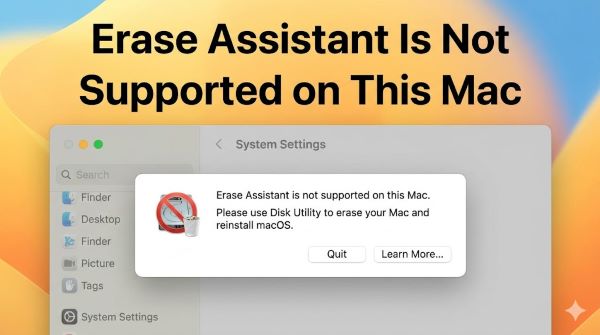
When you try to erase your Mac and encounter the message “erase assistant is not supported on this mac,” you’re running into a compatibility limitation. This error means Apple’s Erase Assistant feature isn’t available on your specific Mac model or macOS version. Understanding your alternatives helps you wipe your Mac and start fresh without this feature.
The Erase Assistant is a relatively new Mac tool designed to simplify the erasing process. Apple added it to help users clear their devices without technical complexity. However, not all Macs support it, and the error message can be confusing if you don’t know other options exist.
Why Is Erase Assistant Not Supported on Your Mac?
The erase assistant is not supported on this mac error appears for several reasons. Most commonly, your Mac model is too old to support the feature. Apple introduced the Erase Assistant in recent macOS versions, typically available on newer Macs with modern processors.
Older MacBook Air, MacBook Pro, and iMac models don’t support the Erase Assistant. If your Mac runs an older version of macOS, like Big Sur or earlier, the feature simply doesn’t exist in your operating system. You need a minimum macOS version to access the Erase Assistant, and many Macs can’t update to that version.
The erase assistant not supported on this mac error also appears if you’re trying to access the Erase Assistant through a settings menu that shouldn’t be there. Some users find references to the feature in Apple support articles but can’t locate it on their device because their Mac doesn’t support it.
Hardware limitations are another factor. Some older Macs lack the necessary software framework for Erase Assistant to function. Apple prioritizes newer devices for this feature, leaving older hardware without access.
Alternative Method 1: Erase Using Disk Utility
The most reliable alternative to using the erase assistant is not supported on this mac ventura workaround is Disk Utility. This built-in Mac tool gives you full control over erasing your drive.
First, restart your Mac and hold Command+R immediately as it boots. This launches Recovery Mode. From the Recovery Mode menu, select Disk Utility.
In Disk Utility, locate your startup disk in the left sidebar. Click it to select it, then click the Erase button at the top of the window. A dialog appears asking for a new name for your disk and the format you want. Choose APFS for modern Macs or Mac OS Extended for older models.
Enter the disk name you want and click Erase. This process wipes your drive completely, removing all data and starting fresh. The process takes several minutes depending on your drive size.
After erasing, you can reinstall macOS using the Recovery Mode menu. This gives you a completely clean Mac without the limitations of the Erase Assistant.
Alternative Method 2: Use the System Settings Approach
If you want to try erasing without using Recovery Mode, the why can’t i erase my mac situation might stem from navigating to the wrong settings location. On newer Macs, System Settings contains some erase options.
Open System Settings and navigate to General. Look for the Transfer or Reset option, depending on your macOS version. Some versions show an Erase All Content and Settings button here.
This method works differently than Erase Assistant. It erases data while keeping the operating system intact. If you need a completely clean system with a fresh macOS installation, this approach might not fully reset your Mac.
The method also has limitations on many older Macs. If you don’t see this option in System Settings, your Mac likely doesn’t support it.
Erase Assistant Mac: What It Actually Does
Understanding what the erase assistant is not supported on this mac feature would do helps you choose the right alternative. The Erase Assistant automates the erasing process with a step-by-step wizard that guides you through erasing your Mac.
It simplifies the technical details that Disk Utility requires. Instead of navigating Recovery Mode and understanding disk formats, the Erase Assistant asks simple questions and handles the rest automatically.
For newer supported Macs, the Erase Assistant is the easiest path. For older Macs without support, Disk Utility provides the same result with more technical steps.
Prepare Your Mac Before Erasing
Before attempting any erase method, back up your important data. Erasing removes everything, and you can’t recover files after the process completes. Use Time Machine or cloud backup services like iCloud to save your data.
Document your software licenses, serial numbers, and authentication information for any paid applications. You’ll need to reinstall them after erasing, and some require re-authentication.
Create an external drive backup if possible. This gives you a safety net if something goes wrong during the erase process. A backup is especially important if you’re uncomfortable with the technical steps involved.
How to Erase MacBook Air
The erase macbook air process follows the same general path as other Macs, but MacBook Air users often encounter the erase assistant not supported on this mac error on older models.
For MacBook Air users without Erase Assistant support, Recovery Mode and Disk Utility remain your options. Restart your MacBook Air, hold Command+R, and follow the Disk Utility method described earlier.
Newer MacBook Air models might have access to the Erase Assistant in System Settings, depending on their processor generation and macOS version.
Storage and Permission Issues
Sometimes the error “why is erase assistant not supported on my mac” actually indicates a storage or permission issue rather than a compatibility problem. Your drive might not have enough free space for the erase process to complete safely.
Clear some storage space before attempting to erase. Delete large files, empty the trash, and remove unnecessary applications. Having at least 10-20 GB free helps the erase process run without problems.
Permission issues can also block the erase assistant. Make sure you’re logged in with an administrator account. If your account lacks administrator privileges, you can’t erase the drive. Contact the account administrator to request permission or create an administrator account if you need to.
Reinstalling macOS After Erasing
After you erase your Mac, you need to reinstall the operating system. From Recovery Mode, select Reinstall macOS from the menu. Your Mac downloads and installs the operating system it came with or the latest compatible version.
Have a stable internet connection ready. The download is large, and a poor connection might interrupt the installation. Using ethernet through an adapter is more reliable than Wi-Fi if possible.
The reinstallation process takes 20 minutes to an hour depending on your internet speed and Mac model. Don’t interrupt it by closing the lid or putting the Mac to sleep.
Understanding Backspace in Mac
Users searching for backspace in mac while trying to erase often want to know how to delete content using their keyboard. The backspace key on Mac is labeled Delete and works when you select files and press it. Holding Command+Delete sometimes works for permanent deletion depending on the app.
However, this doesn’t relate to erasing your entire Mac. Individual file deletion is different from erasing your whole drive. Keep this distinction in mind when looking for erase methods.
What About Third-Party Erase Tools?
Some third-party Mac cleaning and erasing tools exist. These programs offer graphical interfaces that simplify erasing compared to Disk Utility. However, they’re not necessary, and built-in Mac tools are usually safer.
Stick with Apple’s built-in options when possible. They’re designed specifically for your Mac and don’t risk compatibility issues. The Disk Utility method or System Settings approach should be sufficient for any erase scenario.
Troubleshooting the Erase Process
If erasing fails midway, your Mac might shut down unexpectedly. Force restart by holding the power button for 10 seconds. Then boot into Recovery Mode again and try erasing from Disk Utility.
If the drive appears unhealthy or corrupted, Disk Utility has repair options. Run the Repair Disk function before erasing to fix potential issues. This sometimes resolves problems that prevent erasing.
If you still can’t erase, contact Apple Support or visit an Apple Store. They have professional tools to diagnose and resolve persistent erase problems.
Key Takeaways
- Erase assistant is not supported on this mac error means your Mac model or macOS version doesn’t support Apple’s Erase Assistant feature, typically found on newer Macs.
- Disk Utility provides the most reliable alternative for erasing your Mac by booting into Recovery Mode (Command+R) and using the built-in erase tool.
- Erase assistant not supported on this mac ventura happens because older Macs can’t support features in newer macOS versions, regardless of which version you’re running.
- Back up all important data before erasing, as the process is permanent and removes all files on your Mac.
- Erase macbook air and other Mac models use the same Disk Utility process when Erase Assistant isn’t available.
- System Settings erase options on newer Macs provide a simpler alternative to Recovery Mode but might not fully reset your system like Erase Assistant would.
- Ensure you have administrator account privileges before attempting to erase your Mac, as standard accounts lack the necessary permissions.
- Clear at least 10-20 GB of storage space before erasing to ensure the process completes without problems.
- After erasing, reinstall macOS from Recovery Mode to get a fresh operating system on your Mac.
- Why can’t i erase my mac might indicate a permission issue or lack of storage space rather than a compatibility problem with Erase Assistant.