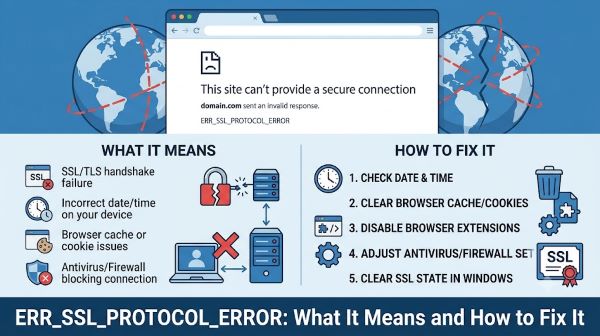
If you are seeing ERR_SSL_PROTOCOL_ERROR in your browser, the site you are trying to reach is failing to establish a secure connection. The error is Chrome’s way of saying that the SSL/TLS handshake between your browser and the web server broke down before any data could be exchanged. The cause is almost always on your side of the connection, not the website’s, which means there are real fixes you can apply right now.
This guide covers what causes the error and the most reliable solutions in order from fastest to most involved. Most people resolve it within the first two or three steps.
What Is an SSL Protocol Error?
SSL (Secure Sockets Layer) and its successor TLS (Transport Layer Security) are the encryption protocols that create secure connections between your browser and websites. When you visit a site with HTTPS in the address, your browser and the server run a brief handshake to agree on an encryption method and verify the site’s certificate. This process normally takes milliseconds and is invisible to the user.
ERR_SSL_PROTOCOL_ERROR means that handshake failed. The two sides could not agree on a protocol version, the certificate was rejected, or something on your local system interfered with the process before it could complete.
Fix 1: Check Your System Date and Time
This is the most common cause and the easiest fix. SSL certificates are time-sensitive. If your computer’s clock is set to the wrong date or time, your browser may reject a perfectly valid certificate because it thinks the certificate has expired or isn’t valid yet.
On Windows: right-click the clock in the taskbar, select “Adjust date/time,” and turn on “Set time automatically.” On Mac: go to System Settings, then General, then Date and Time, and enable “Set time and date automatically.”
Reload the page after syncing the clock. If this was the issue, the error clears immediately.
Fix 2: Clear Browser Cache and SSL State
Cached data and a corrupted SSL state can both trigger ERR_SSL_PROTOCOL_ERROR on sites that previously loaded fine.
Clear browser cache in Chrome:
- Press Ctrl + Shift + Delete (Windows) or Cmd + Shift + Delete (Mac).
- Set the time range to “All time.”
- Check “Cached images and files” and “Cookies and other site data.”
- Click “Clear data.”
Clear SSL state on Windows:
- Open the Start menu and search for “Internet Options.”
- Go to the Content tab.
- Click “Clear SSL State.”
- Click OK and restart Chrome.
Fix 3: Disable Chrome Flags and Experimental Features
If you have enabled any experimental features in Chrome via chrome://flags, some of these interact with SSL handling. Type chrome://flags in the address bar, click “Reset all to default” at the top, and restart the browser.
Fix 4: Check Your Antivirus or Security Software
Many antivirus programs and security suites intercept HTTPS connections to scan them for threats. This is called SSL inspection or HTTPS scanning. When the scanning software is misconfigured or outdated, it can interfere with the handshake and produce ERR_SSL_PROTOCOL_ERROR.
Temporarily disable your antivirus’s web protection or HTTPS scanning feature and try loading the page again. If it loads, the antivirus is the cause. Check for updates to the security software, or look in its settings for an option to exclude your browser or specific sites from SSL inspection.
Fix 5: Check TLS Version Settings
Chrome requires TLS 1.2 or higher to establish secure connections. If your system or browser has TLS 1.2 disabled for any reason, connections to sites using it will fail.
On Windows, open Internet Options, go to the Advanced tab, and scroll down to the Security section. Make sure “Use TLS 1.2” and “Use TLS 1.3” are both checked. “Use SSL 3.0” and “Use TLS 1.0” should be unchecked, as these are deprecated and can cause conflicts.
Fix 6: Disable VPN or Proxy
A VPN or proxy that routes your traffic through a server with certificate issues can produce ERR_SSL_PROTOCOL_ERROR on sites that load fine without it. Temporarily disable your VPN, reload the page, and see whether the error disappears.
If you use a proxy configured in Windows or Chrome, check the proxy settings:
- In Chrome: go to Settings, search for “proxy,” and click “Open your computer’s proxy settings.”
- In Windows: toggle off “Use a proxy server” under Manual proxy setup if one is enabled.
Fix 7: Flush DNS and Reset Network Settings
A stale DNS cache or misconfigured network settings can occasionally interfere with SSL connections. Open Command Prompt as Administrator and run these commands one at a time:
ipconfig /flushdns
netsh int ip reset
netsh winsock reset
Restart your computer after running all three.
Fix 9: Reinstall or Update Chrome
If none of the above steps resolve the error, Chrome itself may have a corrupted installation or an outdated version that doesn’t support the SSL/TLS configuration the server expects.
First, update Chrome. Go to the three-dot menu, then Help, then “About Google Chrome.” Chrome checks for updates automatically on this screen and installs them if available. Restart after updating.
If the error persists, uninstall Chrome completely, download a fresh copy from google.com/chrome, and reinstall. A clean installation removes any corrupted profile data or misconfigured settings that survived previous troubleshooting steps.
In rare cases, ERR_SSL_PROTOCOL_ERROR is actually coming from the website’s server configuration. If the site has an expired certificate, uses an unsupported cipher suite, or has a misconfigured SSL setup, you will see this error regardless of what you do on your end.
To confirm: check whether other people can access the site using a tool like downdetector.com, or try loading the site on a different device using a different network. If the error appears universally, the problem is on the server side and there is nothing you can do until the site owner fixes it.
Key Takeaways
- ERR_SSL_PROTOCOL_ERROR means your browser failed to complete a secure SSL/TLS handshake with the website. The cause is usually local.
- Start with your system clock. An incorrect date or time causes SSL certificate validation to fail and is the most common trigger for this error.
- Clear Chrome’s cache and your Windows SSL state to remove corrupted session data that may be causing the failure.
- Antivirus HTTPS scanning is a frequent culprit. Disabling it temporarily confirms whether it is interfering with the handshake.
- Check that TLS 1.2 and 1.3 are enabled in your system’s Internet Options. Disabled TLS versions prevent Chrome from negotiating a valid connection.
- A VPN or proxy routing traffic through a misconfigured server can also produce ERR_SSL_PROTOCOL_ERROR. Disable it temporarily to test.
- Flushing DNS and resetting Winsock resolves network-level issues that occasionally block SSL connections.
- If the error appears on multiple devices and networks, the website’s SSL certificate or server configuration is the problem and you need to wait for the site owner to fix it.